Plans and billing
Each workspace is on the Trial, Starter, Pro or Enterprise plan. Kosuke bills the time your sandboxes run, and each plan includes some of that usage. Owners and admins change the plan in Settings > Workspace > Billing.
Plans
| Plan | Price | Included usage | Sandboxes at once | Support |
|---|---|---|---|---|
| Trial | Free | $10 once, or $30 with a promo code | 3 | |
| Starter | $20 a month, or $216 a year | $25 every month | 5 | Best-effort, by email |
| Pro | $190 a month, or $2,040 a year | $250 every month | 10 | Dedicated Slack channel, next business day |
| Enterprise | Contracted | Contracted | No limit | Contracted |
The annual prices work out to $18 a month for Starter and $170 a month for Pro. Included usage renews every month on both intervals.
What usage costs
Kosuke charges for sandbox time, by the second, only while a sandbox is running. Your included usage is spent at these rates, and so is anything past it.
| Sandbox tier | CPU and memory | Price per hour |
|---|---|---|
| Small | 2 vCPU, 4 GB | $0.51 |
| Medium | 4 vCPU, 8 GB | $0.98 |
| Large | 8 vCPU, 16 GB | $1.95 |
| XLarge | 16 vCPU, 24 GB | $3.49 |
Each project sets its Sandbox Tier in Project settings. Every sandbox the workspace runs counts.
| Usage | What runs |
|---|---|
| Chat sessions | The sandboxes of your chat sessions |
| Main preview | Each project's own preview, outside any chat session |
| Warm-up | Sandboxes started ahead of time, so your next session starts at once |
| Deploys | Deploy runs |
| Orchestrator | The workspace's own sandbox, which runs the Lead and answers Slack mentions |
Model usage is not on your Kosuke bill. Each turn runs on the workspace's Credentials or a member's Subscription. The provider bills that account, or counts the usage against that plan. See AI providers.
Trial and free credits
A new workspace starts on Trial with $10 of free credits. Free credits are granted once per person, not once per workspace. Your second workspace starts with none.
If you have a promo code, type it in Promo code (optional) when you create your first workspace. It grants $30 instead of $10. A code works once per person, and only until its expiry date.
When the free credits run out, the workspace stops starting sandboxes until you subscribe. Nothing is billed.
Subscribe from Trial
- Open Settings > Workspace > Billing, or press Upgrade at the bottom of the sidebar.
- Choose Monthly or Annual.
- Press Subscribe on Starter, or Go Pro on Pro.
- Enter your card on the Stripe checkout page. You return to Billing when the payment goes through.
For Enterprise, press Contact us.
Upgrade from Starter to Pro
- In Settings > Workspace > Billing, press Go Pro.
- Check the receipt. It lists the sandbox usage so far this cycle, the Pro fee, and a credit for the Starter time you have not used.
- Press Confirm and pay. The card on file is charged at once.
Pro starts right away, and its $250 of included usage runs from that moment.
Manage billing and invoices
Manage billing opens Stripe's billing portal. There you change the card, switch between monthly and annual, move from Pro to Starter, or cancel.
A cancelled plan runs to the end of its period. Billing shows the end date, and the workspace moves to Trial after it.
Owners and admins see an Invoices table at the bottom of Billing, with each invoice's date, total and status.
Go past your included usage
Starter and Pro can keep running after the included usage is spent.
- In Settings > Workspace > Billing, find Usage past your plan.
- Turn on Bill me at list rates once my included usage is spent.
- Choose No limit, or choose Stop at and type a monthly amount in dollars.
The setting saves on its own. Usage past your plan is billed at the sandbox rates above.
When usage runs low or runs out
At 80% of the free credits or included usage, a Running low banner appears. On Trial it offers See plans. On Starter or Pro it offers Allow overage, and it stays hidden when overage is already on.
When usage runs out:
- New sessions, messages, deploys and previews stop.
- A turn already running finishes.
- Idle sandboxes and main previews pause within five minutes.
- You can still add sessions to the Backlog.
The banner names the reason.
| Banner | What it means | What to do |
|---|---|---|
| Free credits used up | The Trial credits are spent | Press See plans and subscribe |
| No free credits on this workspace | Your free credits went to another workspace | Press See plans and subscribe |
| Included usage spent | The month's included usage is spent and overage is off | Press Allow overage, or wait for the monthly reset |
| Spend limit reached | Overage reached your Stop at amount | Press Raise limit, or wait for the monthly reset |
| Payment failed | The last payment did not go through | Press Manage billing and update the card |
After a failed payment, the workspace stays stopped until the payment goes through.
After a paid plan ends, the workspace is back on Trial. If its free credits are spent, the banner reads Free credits used up.
Sandboxes at once
Each plan limits how many chat session sandboxes run at the same time. That is 3 on Trial, 5 on Starter and 10 on Pro, with no limit on Enterprise. A plan change moves the limit at once.
When every slot is taken, starting another session opens the Sandbox Limit Reached dialog. There you pick sessions to stop. Preview and sandboxes explains it.
See your usage
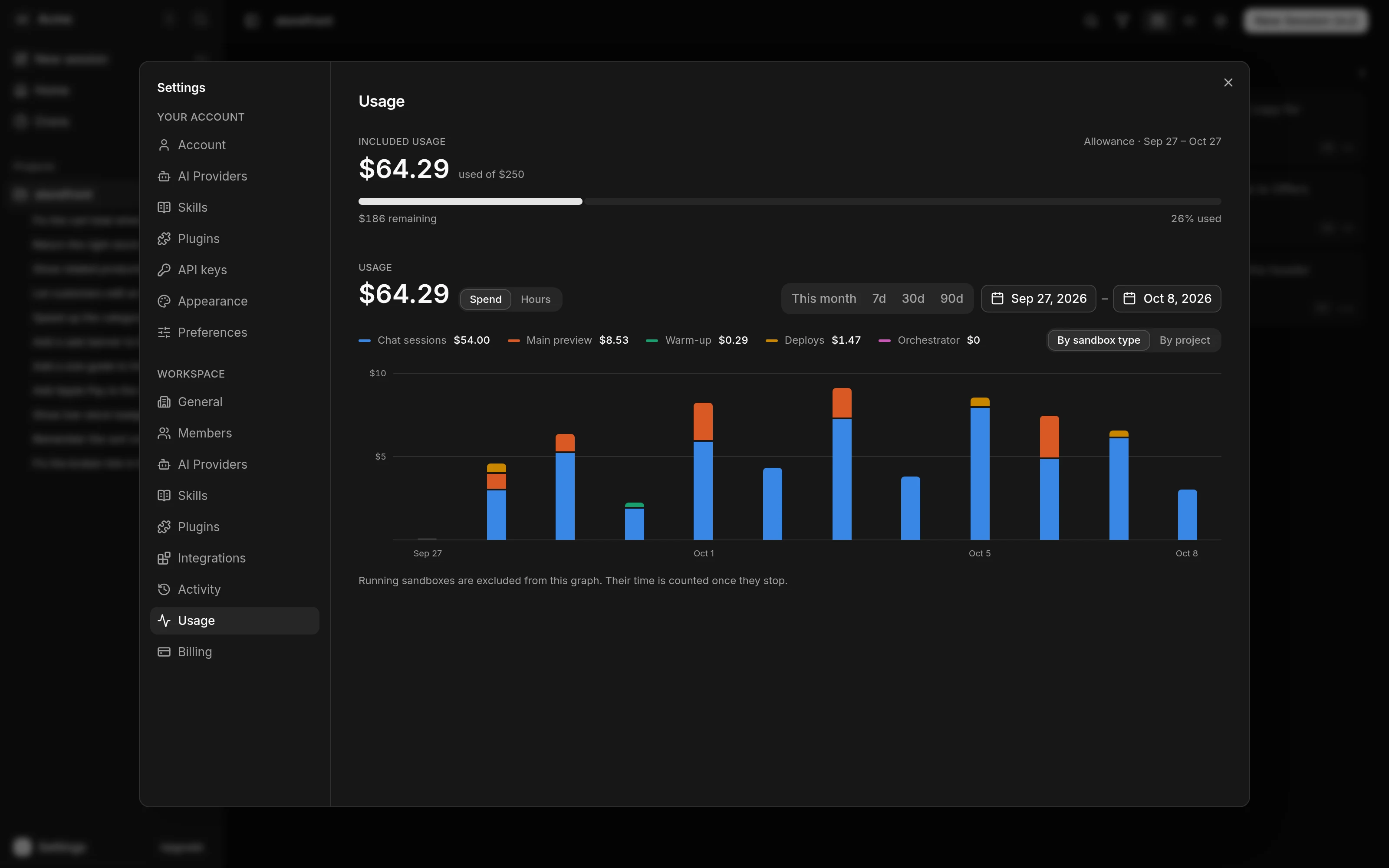
Open Settings > Workspace > Usage. On Trial, Starter and Pro, the top shows the free credits or the included usage, with the amount used and the amount remaining. On Starter and Pro it also shows the allowance dates. On Trial it reads Lifetime allowance.
Below it, the chart shows Spend or Hours for This month, 7d, 30d, 90d or a date range. Split it By sandbox type or By project. A sandbox's time shows in the chart once the sandbox stops.
Who can change billing
Owners and admins subscribe, upgrade, set overage, open Manage billing and see invoices. Members see the plans, the sandbox rates and Usage, with the billing buttons turned off.
Next steps
- Members and roles to make someone an admin.
- Project settings to pick a Sandbox Tier.
- AI providers for the accounts that run your models.