Slack
Connect Slack, and any workspace member can mention @Kosuke in a Slack channel or thread. Kosuke reads the request and the thread around it, then answers in the thread or files a chat session and starts it. A workspace admin connects Slack once, in Settings > Workspace > Integrations, and it covers every project in the workspace.
Connect Slack
Workspace owners and admins connect Slack:
- Open Settings > Workspace > Integrations, then the Bots tab.
- On the Slack card, press Connect Slack.
- On slack.com, pick the Slack workspace to install into and approve.
- Back in Kosuke, the card reads Connected, with the Slack workspace's name and who authorized it.
Members see the same card without controls. One Slack workspace connects to one Kosuke workspace. If Kosuke says that Slack workspace is already connected to a different Kosuke workspace, disconnect it there first.
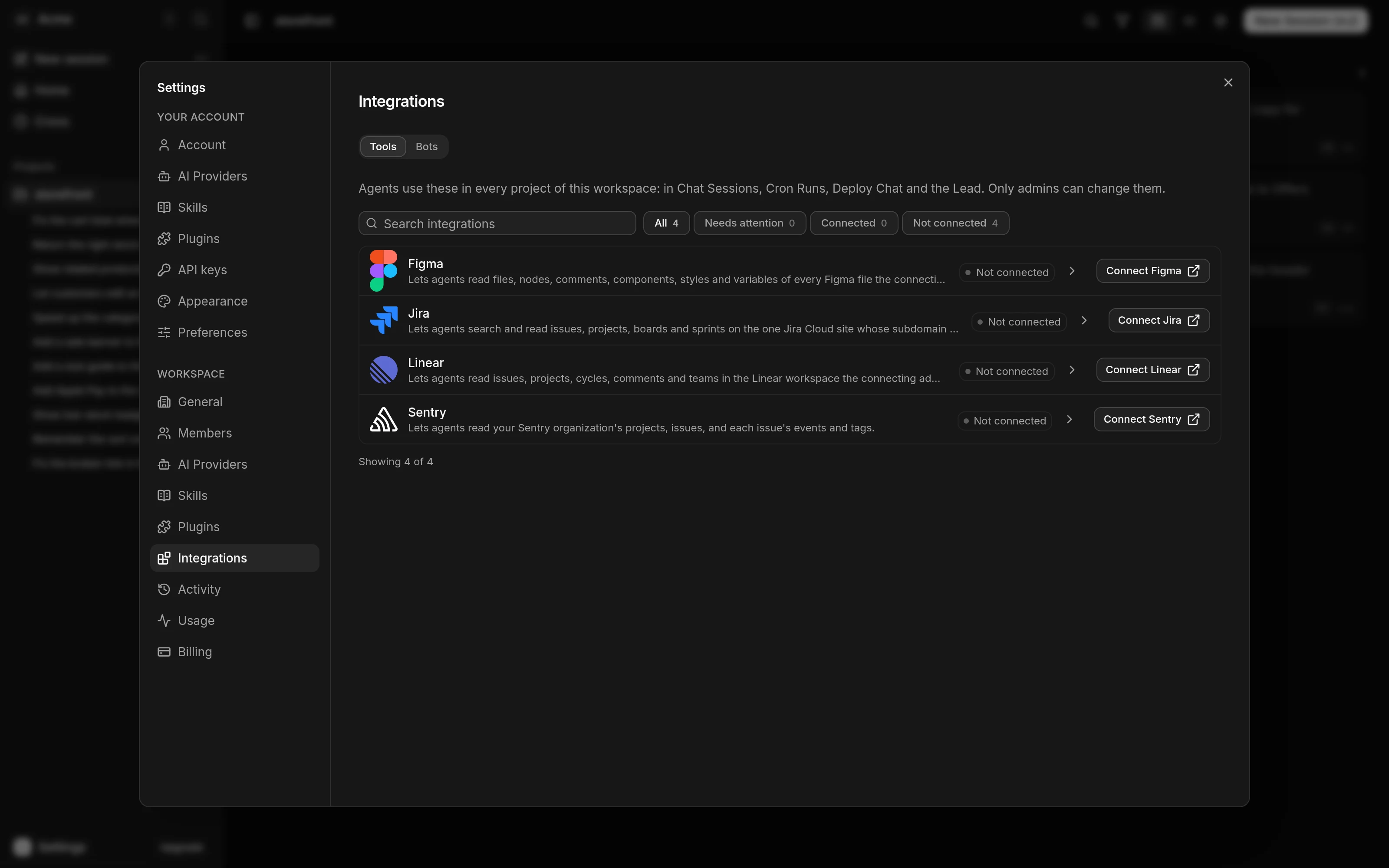
| Card status | What it means | What to do |
|---|---|---|
| Not available | The Slack app is not set up on this Kosuke deployment | Nothing to do in the workspace |
| Not connected | Mentions of Kosuke reach nothing | Press Connect Slack |
| Connected | Kosuke answers mentions in this Slack workspace | Nothing |
| Reconnect required | Kosuke lacks a Slack permission, so it may miss the thread or the files shared in it | Press Reconnect and approve again |
Mention Kosuke
Write @Kosuke and your request in a channel message, or in a reply inside a thread. For example, reply to an error alert with "@Kosuke fix this" or ask "@Kosuke does checkout handle refunds yet?".
- Kosuke adds an
:eyes:reaction to your message and replies "Working on it...". - It reads your mention, the thread's earlier messages and the files shared there. Then it picks the project the request is about.
- It does one of two things:
- For a question or a check, it answers in the thread and files nothing.
- For work, such as a bug or a change, it files a chat session on that project and starts it. Its reply names the project and links to the session.
- The reply replaces "Working on it...", and the reaction on your message changes to show how it ended.
| Reaction | What it means |
|---|---|
:white_check_mark: | Kosuke filed a chat session |
:speech_balloon: | Kosuke answered in the thread |
:warning: | Kosuke filed nothing and had no answer it could post. Its reply is one of the lines in When Kosuke cannot help |
:no_entry: | Kosuke found no member account for you |
Replies are short, one sentence or a few bullets. They carry no code, file contents or links of the agent's own, because a channel can hold people outside your workspace. The details go into the session, which you read in Kosuke.
Kosuke reads the thread as background. When the thread and your mention disagree, your mention is the request.
Files shared in Slack
Kosuke opens images, PDFs, text files, and Word and Excel documents shared in your mention and in the thread, up to 10 files. Other files stay unopened. It attaches the files the work needs to the session it files, since the session cannot see Slack.
One session per thread
A thread holds one chat session for its whole life. The first piece of work in a thread files it. A later mention in the same thread that asks for more work sends a message into that session instead.
When the session's first turn ends, Kosuke posts one ending line in the thread. After that, the thread gets nothing more, and you follow the session in Kosuke.
| Ending line | What it means |
|---|---|
| Done. | The agent finished the turn |
| Waiting on an answer in Kosuke. | The agent asked a Clarification. Answer it in the session |
| That turn failed. | Open the session to see why |
| That turn was stopped. | The turn was stopped before it finished |
Who Slack users are
Kosuke matches the person who mentioned it by the email on their Slack profile. That email must belong to a Kosuke account that is a member of this workspace. Otherwise Kosuke replies "I can't find a Kosuke account for you in this workspace." and does nothing else.
A session filed from Slack has the member who mentioned Kosuke as its Assignee. It appears on the board like any other session.
Whose credentials Slack work spends
Everything Slack starts runs on the workspace's Credentials and spends the workspace's credits. That covers reading the request and the session it files. A member's Subscription is never used, even after the session is reassigned. Slack requests need Anthropic or OpenAI Credentials in the workspace. See AI providers.
When Kosuke cannot help
| Reply | What to do |
|---|---|
| I can't find a Kosuke account for you in this workspace. | Use the same email in Slack and Kosuke, and ask an admin to invite you |
| This workspace has reached its usage limit, so I can't start any work. | Ask an admin to raise the limit. See Plans and billing |
| I'm still starting up for this workspace | Mention Kosuke again in a minute |
| I couldn't reach Kosuke just now, so I haven't filed anything. | Mention Kosuke again in a minute |
| I couldn't file a session for that. | Kosuke had no answer it could post, or its answer was withheld because it looked like a link or a secret. Ask again, without asking for links or code |
| That didn't work. There is more detail in Kosuke. | Try again. If it keeps failing, see Get help |
If replies end with a note that Kosuke can see only the message that mentioned it, or cannot open shared files, ask an admin to reconnect Slack.
Disconnect Slack
- Open Settings > Workspace > Integrations, then the Bots tab.
- On the Slack card, press Disconnect (the trash icon).
- Press Disconnect in the dialog to confirm.
Mentions of Kosuke stop reaching the workspace. Threads already in Slack stay as they are. To connect again, install the app again with Connect Slack. Removing the Kosuke app in Slack disconnects it too.
Limits
- Kosuke answers mentions in channels and their threads. A mention in a direct message reaches nothing.
- A thread holds at most one chat session.