AI providers
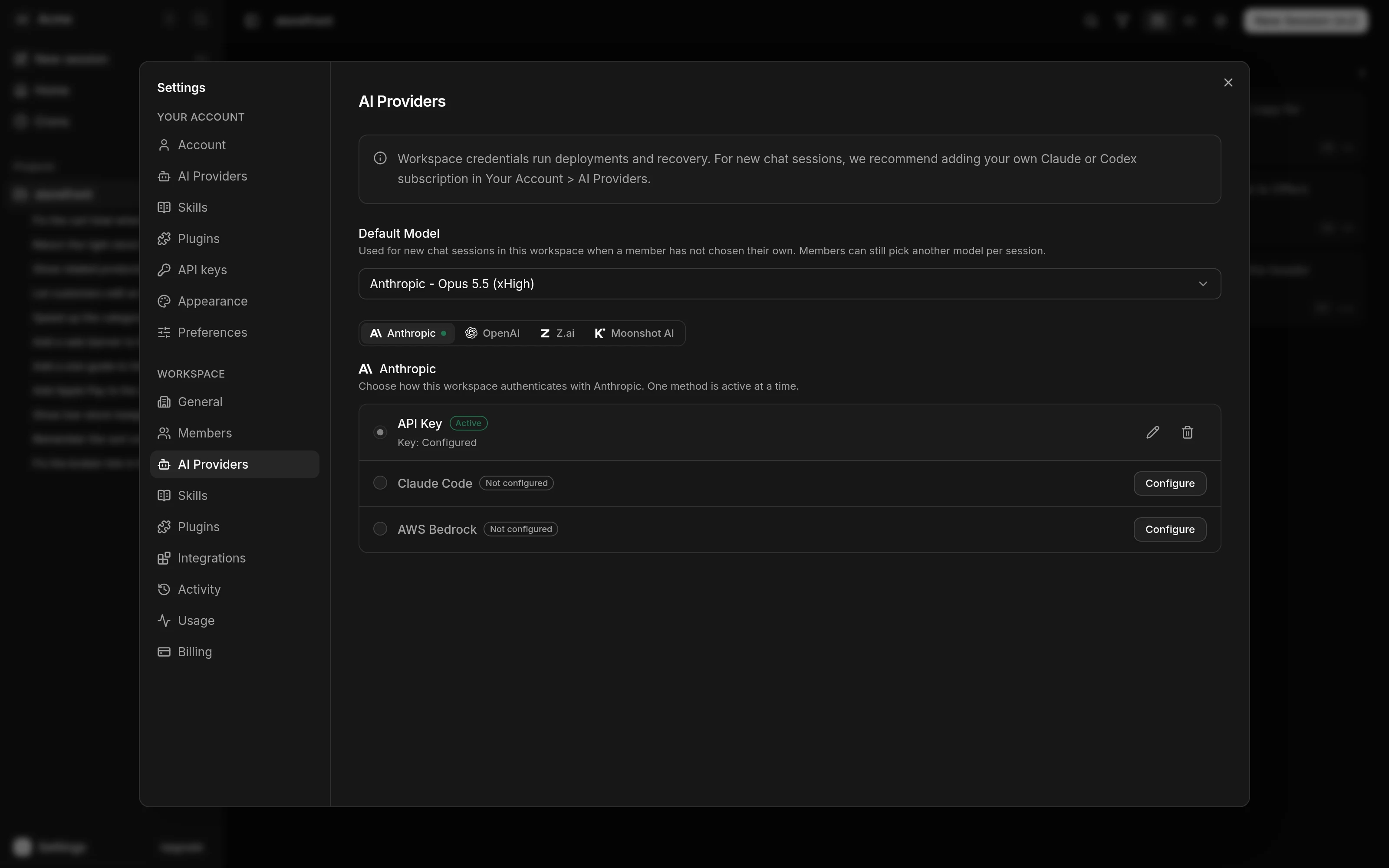
Every agent in Kosuke runs on an AI provider account you connect. A workspace admin connects the workspace's Credentials in Settings > Workspace > AI Providers. Any member can also connect their own Subscription in Settings > Your Account > AI Providers, and the sessions they are the Assignee of run on it. Deploys, Cron Runs and Slack requests always run on the workspace's Credentials. Both sections have one tab per provider, and you can connect several accounts to a provider.
Connect the workspace's Credentials
Owners and admins connect these. Members see the same section read-only, marked Managed by workspace admins.
| Provider | Methods |
|---|---|
| Anthropic | API Key, Claude Code, AWS Bedrock |
| OpenAI | API Key, Codex |
| Z.ai | GLM Coding Plan |
| Moonshot AI | Kimi Code |
- Open Settings > Workspace > AI Providers.
- Open the Anthropic, OpenAI, Z.ai or Moonshot AI tab, then press Configure beside the method you want.
- Complete the dialog for that method, as the table below shows.
| Method | What you do |
|---|---|
| API Key | Paste the key and press Save. |
| AWS Bedrock | Choose the AWS Region and paste the Bedrock API Key. Pick a Validation model your Bedrock account has enabled, then press Save. |
| Claude Code | Open the Claude sign-in page and sign in. Paste the code it shows into Authorization code and press Connect. |
| Codex | Copy the code the dialog shows. Open the OpenAI sign-in page, sign in to ChatGPT and enter the code. The dialog closes when you finish. |
| GLM Coding Plan | Paste an API key from your Z.ai API keys page and press Save. |
| Kimi Code | Paste an API key from your Kimi Code Console and press Save. |
Kosuke checks every key before it saves it. The method you save becomes Active. Each provider has one active method at a time. To switch, select another method that reads Configured.
Connect your own Subscription
- Open Settings > Your Account > AI Providers.
- Open the Anthropic, OpenAI, Z.ai or Moonshot AI tab. Press Configure beside Claude Code, Codex, GLM Coding Plan or Kimi Code.
- Sign in the same way as in the table above. For a GLM Coding Plan, paste the plan's API key. A Team Plan key works too. For Kimi Code, paste a key from the Kimi Code Console. Moonshot AI refuses a key whose membership does not include Kimi K3.
Your Subscription belongs to you and follows you into every workspace you belong to. The same section sets your Default Model, which Models explains.
To disconnect your only account, press the remove icon beside it, then press Disconnect. A running turn finishes on it. Your sessions move to the workspace's Credentials at their next message. With several accounts, disconnecting one moves them to your next account instead.
Connect several accounts
A provider tab holds more than one account, so a plan that runs out does not stop your work. Each account is a login, or for GLM Coding Plan and Kimi Code a key.
| Where | Holds up to five |
|---|---|
| Your Account | Claude Code, Codex, GLM Coding Plan and Kimi Code accounts, each provider counted on its own. |
| Workspace | Claude Code and Codex accounts. |
The workspace's API Key, AWS Bedrock, GLM Coding Plan and Kimi Code stay one each. Only admins change the workspace's accounts. Members see them read-only.
- Open the provider's tab.
- Press Add account beside the method and sign in, or paste the key. The new account goes last in the order.
- Repeat for each account. At five, Add account is disabled and its tooltip says why. Disconnect one to add another.
Kosuke refuses an account that is already connected. The dialog says so and nothing is overwritten. For Claude Code and Codex it compares the account email. For a GLM Coding Plan or Kimi Code it compares the key.
Each account has its own row under the method. It shows the account email, or the end of the key, a badge, and its own usage meters.
| Badge | Means |
|---|---|
| In use | The next turn runs on this account. |
| Fallback | A later account in the order, used when the ones before it are out. |
| Limit reached | The plan ran out. The account is used again once its reset has passed. |
| Reconnect required | The login expired or was revoked. Kosuke skips it. |
Under a method that is not active, an account shows no In use or Fallback badge.
On each row:
- Press the pencil icon to sign in again, or paste a new key, and replace that account. It keeps its place in the order.
- Press the trash icon to remove it, then confirm in the dialog that names the account. A running turn finishes on it. Sessions move to the next account on their next message. Removing the last account asks the way a single account does.
- With two or more accounts, drag the handle at the left of a row to reorder them. Or focus the handle and press the up or down arrow. The order saves at once.
The top account is always preferred. Kosuke uses a later one only while the ones before it are out.
When an account reaches its limit
A chat session turn that hits a plan's usage limit does not stop while another account is left. Kosuke marks that account Limit reached until the reset time the provider reports, or for one hour when it reports none. It then continues the same turn on your next account, and you do nothing. The agent keeps its context. A divider in the transcript marks the move. It reads "Claude Code limit reached, continued on Tommaso's next Claude Code account". It names whose accounts they are, never an email.
The Lead and the agents a turn starts, called Delegated Runs, do not continue. When one hits a limit, Kosuke marks the account Limit reached. The Lead's turn stops and the run fails, and the next turn or run starts on your next account.
An account that needs reconnecting is skipped, and the next one runs. A GLM Coding Plan or Kimi Code key is at its limit only when its plan's allowance runs out. A provider that is merely busy is not a limit.
The same rule holds for the workspace's accounts. Deploys and Cron Runs run on the first usable Claude Code or Codex account, in the admins' order, and continue on the next at a limit.
A member's turn never moves to the workspace's Credentials or to another member's Subscription. When every account of the owner is at its limit or needs reconnecting, the turn stops. The banner reads, for example, "Both your Claude Code accounts are out. The first resets on Oct 8, 3:00 PM UTC." Try again once an account has reset.
Whose credentials run what
| Work | Runs on |
|---|---|
| A chat session you are the Assignee of | Your Subscription for that provider when you hold one. Otherwise the workspace's Credentials. |
| A colleague's session you send into | The Assignee's Subscription, or the workspace's Credentials when they hold none. A notice in the chat names whose Subscription it is. |
| A session a Slack mention filed | The workspace's Credentials, always. |
| A session the Cron Agent filed | The workspace's Credentials, until a member reassigns it. Then the new Assignee's. |
| A deploy | The workspace's Anthropic or OpenAI Credentials, always. |
| The Lead | Your Claude or Codex Subscription when it works. Otherwise the workspace's Credentials. |
Reassigning a session moves it to the new Assignee's credentials from its next turn. Connecting or removing your Subscription moves every session you are the Assignee of in the same way. A session can only be reassigned to someone who can run its model.
Kosuke does not bill model usage. The provider bills the account behind the Credentials, or counts it against the Subscription's plan. Plans and billing covers what Kosuke bills.
Speeds
Fast and Ultrafast are paid speed tiers for some OpenAI models. Models explains how to pick one. Whether a turn gets its speed depends on the OpenAI login it runs on.
| OpenAI method | Fast | Ultrafast |
|---|---|---|
| Codex, as your Subscription or the workspace's Credentials | Yes. | On a ChatGPT Pro 500 or Enterprise plan. |
| API Key | Yes. | Not yet. Every Ultrafast turn fails until Codex lists the tier for API keys. |
A deploy always runs on the workspace's Credentials. A deploy on Ultrafast needs the workspace's Codex login on one of those plans.
Read the usage meters
Claude Code, Codex, GLM Coding Plan and Kimi Code rows show how much of the plan is used. The meters read Current session and This week, each with a percentage and the time until it resets. Kimi Code has no weekly limit, so its row reads Current session and This month. Your own meters are under Your Account. The workspace's are under Workspace, where members can read them too.
Reconnect
A Claude Code or Codex login can expire or be revoked. The account then reads Reconnect required. Z.ai checks a GLM Coding Plan key, and Moonshot AI a Kimi Code key, when you save it. A key it refuses later fails the turn with Authentication failed.
- For your Subscription, press Reconnect on the account's row and sign in again.
- For the workspace's Credentials, an admin presses Reconnect on the account's row, or the pencil icon beside it, then signs in again. For a single-key method, the pencil is beside the method and takes a new key.
Other accounts keep running meanwhile. In a chat session, a notice appears only when none of the owner's accounts can run. It says whose Subscription needs reconnecting. On your own, press Reconnect in AI Providers. On a colleague's, ask them to reconnect it, or reassign the session.
When no provider is connected
With nothing you can run, Kosuke shows Authentication Not Configured and you cannot start a session. The notice links to AI Providers. Connect a Subscription, or ask a workspace admin to add Credentials.
A session that runs on your Claude or Codex Subscription holds your whole login in its sandbox, and the agent can read it. Any member of the workspace can send into that session. They could ask the agent to print your login, or change the project so it runs something during your next turn. Any member can also reassign a session to you, which puts it on your Subscription.
Your sandbox receives the GLM Coding Plan or Kimi Code key and calls Z.ai or Moonshot AI directly. A colleague's turn in your session still spends your plan.
Connect a Subscription only if you trust the members of every workspace you belong to. Disconnecting it removes it from every sandbox that holds it.
Limits
- API Key and AWS Bedrock are for the workspace only. A Subscription is always Claude Code, Codex, GLM Coding Plan or Kimi Code.
- A Subscription whose accounts all need reconnecting or are at their limit stops the sessions that run on it. They never switch to the workspace's Credentials or to another member's Subscription.
- A GLM Coding Plan or Kimi Code cannot run a deploy or the Lead.
Next steps
- Pick a model and set your Default Model.
- Import a repository once the workspace has Credentials.
- Plans and billing for what Kosuke charges.