Preview and sandboxes
The Preview tab runs your app from the session's sandbox, so you can click through the agent's change as it happens. Use its toolbar to open a page, test other screen sizes and read the logs. A sandbox stays awake while someone works in it or watches it, and pauses when nobody does. Press Share preview to show the running app to someone without a Kosuke account.
Use the Preview tab
The Preview tab sits beside Changes and Files in every started session, and beside Artifacts once the agent has written one. The project page also has a preview of the deployed code, with the same address bar, logs and responsive mode.
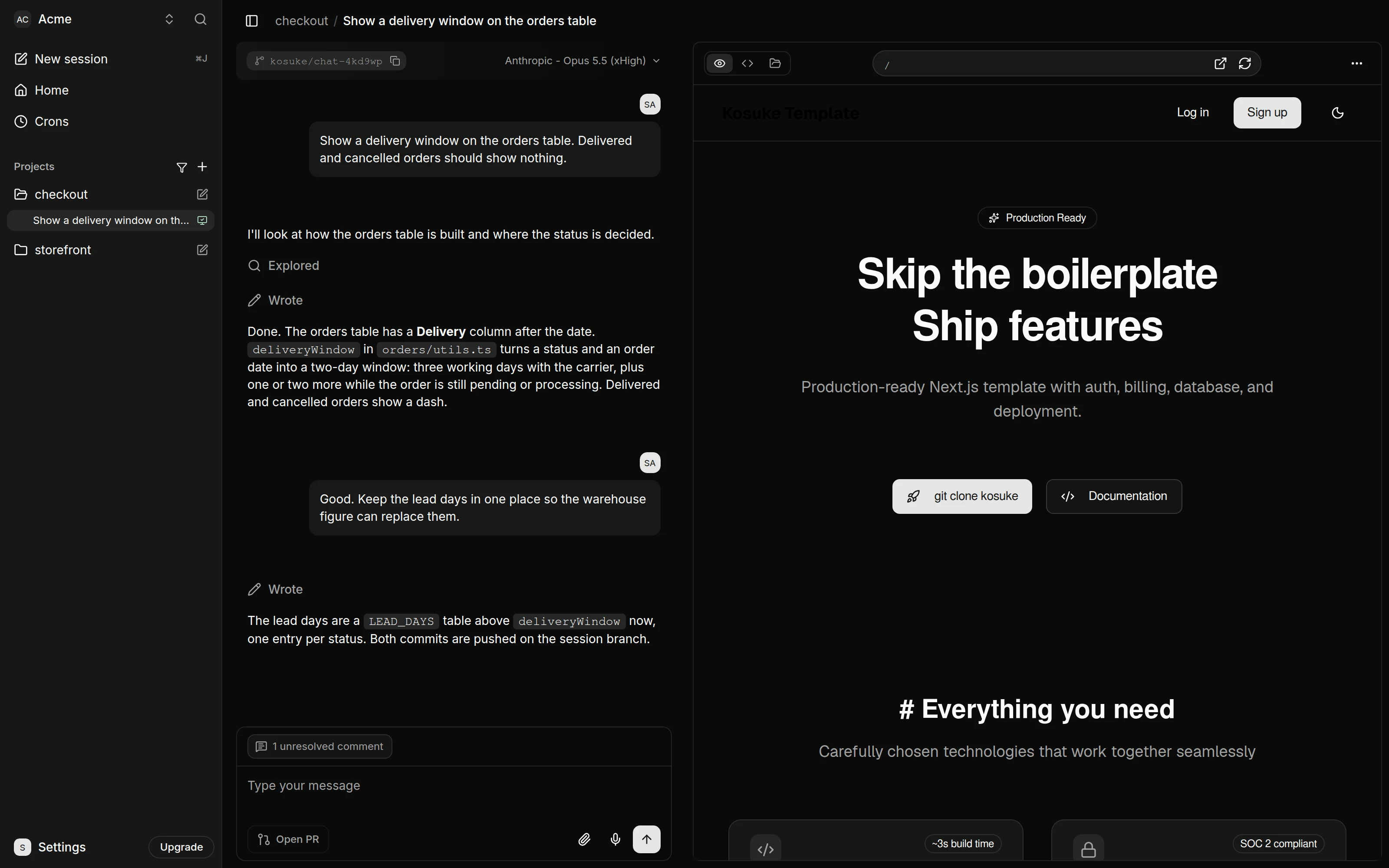
| Control | What it does |
|---|---|
| Frontend switcher | Picks which frontend to show. It appears when the project has more than one. |
| Address bar | Type a path such as /orders and press Enter. Click the field to pick one of your 20 most recent routes. |
| Open in new tab | Opens the current page in its own browser tab. |
| Refresh | Reloads the page in the Preview. |
| Show logs | Opens the logs drawer. |
| Full preview | Hides the chat so the Preview fills the window. Press Exit full preview to bring it back. |
| Responsive toggle | Turns responsive mode on or off. |
| GitHub button | Opens the pull request, the branch or the repository on GitHub. |
| Share preview | Opens the share dialog. |
| More actions | Holds Restart preview. In a narrow panel it also holds the buttons that do not fit. |
The preview reopens on the last page you visited. Each message you send tells the agent which page the Preview is showing.
Test other screen sizes
Press the responsive toggle, or ⌘⇧M (Ctrl+Shift+M on Windows and Linux). A device bar appears above the page.
- Pick a device from the list. It groups presets under Mobile, Tablet and Desktop, from iPhone SE to Desktop 4K.
- Press Rotate to switch between portrait and landscape.
- Press the size to type a width and height, or drag the frame's edges. Either one switches the list to Custom.
Responsive mode stays on for your next previews until you turn it off.
Read the logs
Press Show logs, or Ctrl+` on every platform, including Mac. The drawer opens under the Preview. Drag its top edge to resize it.
| Tab | Shows |
|---|---|
| Full logs | Every service's output, each line tagged with its service. |
| Setup | The output of the project's setup. |
| Each service | That service's output alone, in a tab named after it. |
Press Toggle log filter and type to show only matching lines. Press Copy logs to copy the lines on screen. Lines with errors are red and lines with warnings are amber.
Restart the preview
When the app gets stuck, restart its services without losing the sandbox.
- Press More actions.
- Choose Restart preview.
- Press Restart preview in the dialog.
The services restart in place. The sandbox, its files and its database stay as they are. A paused sandbox has nothing to restart, so start it first.
When a sandbox is awake
A sandbox costs usage while it is awake. It stays awake only while something needs it:
| What is happening | The sandbox |
|---|---|
| The agent is working on a turn | Stays awake |
| A member has the Preview on screen | Stays awake |
| A deploy or another Kosuke task runs in it | Wakes, then pauses again when done |
| You step away to another browser tab, another page of Kosuke, another session or Settings | Stays awake for 10 minutes |
| You close the tab or leave Kosuke | Pauses within about a minute, unless a turn ended in the last 10 minutes |
| The agent is idle and nobody touches the page for 10 minutes | Shows "Still there?", then pauses 60 seconds later |
Each member's window counts on its own. A colleague watching the same preview keeps it awake for you both.
These actions wake a paused sandbox:
- Opening a started session
- Sending a message
- Pressing Start preview
- Committing or pushing from the chat
- A visit to a share link
Opening the logs or the Artifacts tab never wakes a sandbox. Switching to the Changes or Files tab wakes it once per pause.
Still there?
After 10 minutes with no mouse movement, click, key press, scroll or touch on the page, a card in the corner reads "Still there?" and counts down 60 seconds. Move the mouse, press a key, or press Keep it running to carry on. When the countdown ends, the preview pauses unless someone else is watching.
Start a paused preview
A paused sandbox shows "Preview paused" in the Preview tab. Press Start preview to resume it. The Artifacts tab stays readable while a sandbox is paused. The project's own preview always waits for you to press Start preview.
Share a preview
A share link lets anyone open the running app without a Kosuke account. They see the app, not the chat or the code.
- Press Share preview.
- Press Create share link.
- Press Copy share link and send the link.
The link works until you revoke it. It has no expiry and no password. The dialog shows when someone last opened it, or "Not opened yet". Any member of the workspace can create or revoke a link.
Each session has its own link, and so does the project's preview. Sharing is off for Backlog, Completed and Archived sessions.
What a visitor sees
- The app, with a frontend switcher when there are several, and buttons to reload it or open it in a new tab.
- The session's artifacts, under Artifacts, when the session has any. The App button switches back.
A visit wakes a paused sandbox, and that usage counts for your workspace. While it starts, the page shows "Starting preview". If the session has since been completed, archived or moved back to Backlog, the page says "This work is finished". The artifacts stay readable.
Revoke a link
Open Share preview and press Revoke link. The link stops working at once for new visits. Someone who already has the page open loses it within 15 minutes. Creating a link again gives a new address.
Sandbox limit
Your plan limits how many sandboxes can run at once across the workspace. See Plans and billing for the numbers. The project's own preview does not count toward the limit.
When you start, create or resume a session at the limit, the "Sandbox Limit Reached" dialog opens. It lists every running session in the workspace, with its project and branch.
- Tick the sessions to stop. The button says how many you need.
- Press the confirm button, such as Stop 1 Session & Create New.
Kosuke pauses the sessions you picked and carries on with yours. A stopped session keeps its work and wakes again when someone opens it or sends a message.
You can also stop a sandbox yourself. A session with a running sandbox shows a sandbox icon on its board card and in the sidebar. Hover over it and press Stop sandbox. The session's details show the same control in the Sandbox row. Any member can stop any session's sandbox.