Chat sessions and the board
Each piece of work on a project is a chat session. It gets its own branch, sandbox and Preview, so several sessions can run at once without touching each other. The project board shows every session as a card in the column for its status. Press New Session (⌘J, or Ctrl+J on Windows and Linux) to start one, and drag a card to move it.
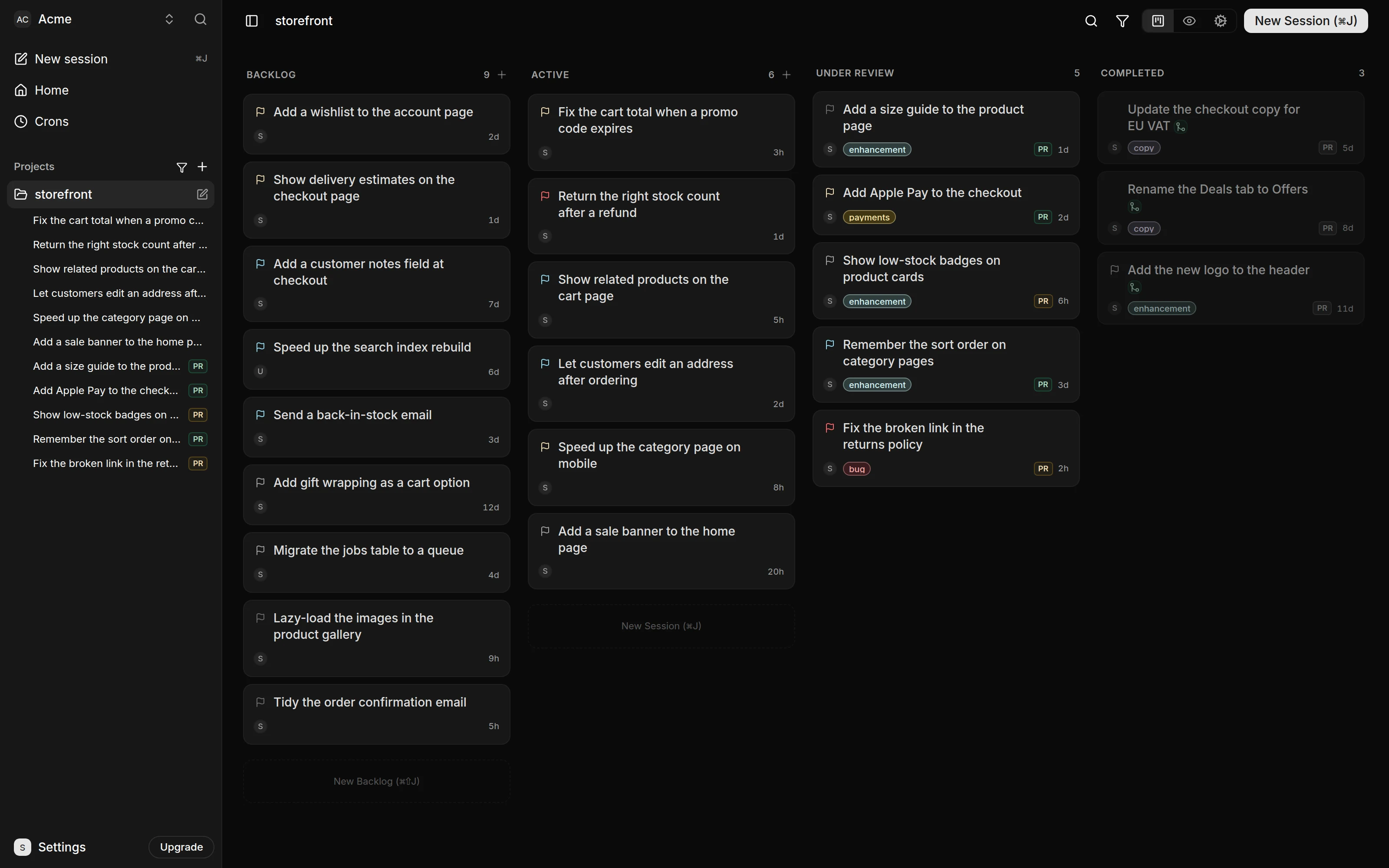
Statuses
| Status | What it means | How a session gets there |
|---|---|---|
| Backlog | Written down, not started. It holds a prompt but no branch and no sandbox. | Created with Backlog, or moved back to Backlog. |
| Active | The conversation is open. The agent may be working or idle. If the session has a pull request, it is a draft. | Started, resumed, or restored. |
| Under Review | The pull request is marked ready for review. A member's message resumes it, and so does Resume. | Marked ready for review in Kosuke or on GitHub. |
| Completed | The pull request was merged, or a Backlog session was completed without code work. It cannot move again. | Merged on GitHub, or a Backlog card dragged to Completed. |
| Archived | Set aside without a merge. Its pull request is closed and its sandbox is gone. | Archived from the menu, or its pull request closed on GitHub. |
The board hides the Archived column. To show it, press Filter Sessions and tick Archived under Status.
Start a session
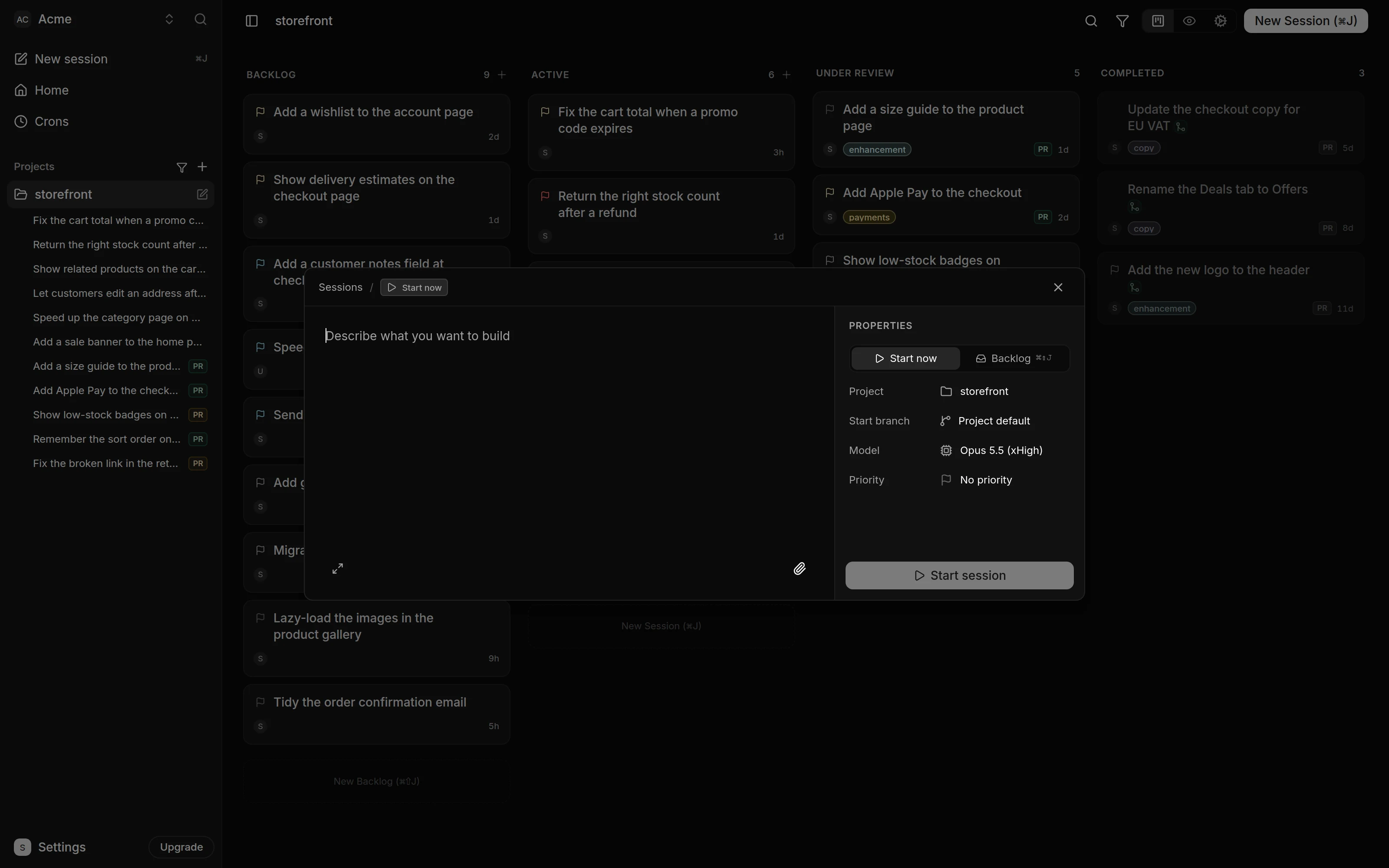
- On the project board, press New Session. You can also press New session in the sidebar, or the New Session row at the foot of the Active column.
- Describe the change the way you would to a teammate. Attach files if they help.
- Check the properties on the right.
- Press Start session. With Backlog selected, the button reads Add to backlog.
| Property | What it sets |
|---|---|
| Start now/Backlog | Start now creates the session and sends your prompt. Backlog saves it to start later and adds a Title field. |
| Project | The project the session belongs to. |
| Start branch | The branch the session starts from. Project default is the branch the project's settings pick for new sessions, or else the repository's default branch. |
| Model | The model and reasoning effort. See Models. |
| Priority | Urgent, High, Medium, Low or No priority. |
| Assignee | Backlog only. The member the work is booked to, or Unassigned. |
⌘⇧J (Ctrl+Shift+J) opens the dialog with Backlog already selected. So does the New Backlog row at the foot of the Backlog column.
Start now needs a deployed project. Until the first deploy, the dialog shows "Project setup not complete. Deploy the project to create sessions." Backlog sessions wait for the first deploy too. After it, you can add them even while a later deploy runs. See Deploy your project.
Work with a Backlog session
Click a Backlog card to open its details. Everything in them can change before you start it:
- Edit the prompt and its attachments. Your edits save when you close the dialog.
- Press Regenerate title to write a new title from the prompt, or click the title to type one.
- Change the start branch, model, priority, assignee and labels.
To start it, press Start session in the details, choose Start from the card's menu, or drag the card to Active. The session becomes Active with a new branch and sandbox, and its prompt becomes the first message.
Some work needs no code, such as a question answered elsewhere. Drag the card to Completed. The session keeps its prompt, attachments, comments and properties. Only a session that has never started can be completed this way.
Move a session on the board
Drag a card to another column. Completed cards stay where they are. On a phone, open the card's actions and use Move to.
| From | To | What happens |
|---|---|---|
| Backlog | Active | The session starts. |
| Backlog | Completed | The session is completed without code work. |
| Active | Under Review | The pull request is marked ready for review. With no pull request yet, Kosuke asks the agent to open one. |
| Under Review | Active | The pull request goes back to draft, and the chat opens again. |
| Active or Under Review | Backlog | Destructive. See Move back to Backlog. |
| Archived | Active | The session is restored and its pull request reopens as a draft. |
| Archived | Under Review | The session is restored and its pull request reopens, marked ready for review. |
| Archived | Backlog | The chat history is removed. The prompt, attachments, comments and properties stay. |
Assignee
The Assignee is the member a session is booked to. It says who is expected to carry the work and grants nothing. Any member can open any session, send messages and move it.
Two things follow the Assignee:
- The "Your turn" and "Unread" cues on the card and in the sidebar appear only for them. A session booked to Kosuke shows them to every member until someone reassigns it.
- Turns run on the Assignee's Subscription, or on the workspace's Credentials when they hold none, with their Personal Skills and Plugins. Sessions filed from Slack always use the workspace's Credentials, whoever their Assignee is. Sessions booked to Kosuke, which the Cron Agent files, use them too until a member reassigns the session to someone. See AI providers.
To reassign a session, click the avatar on its card, or use Assignee in its menu or details. You can reassign in every status except Completed. The picker disables members who cannot run the session's model and says why, for example "Can't run OpenAI models". The transcript records the change, such as "Sam reassigned this session from Alex to Priya". When you are one of the people in it, it names you as "you", as in "You reassigned this session from Alex to yourself". The new Assignee's credentials take over from the next turn.
A Backlog session can be Unassigned. The first member to start it becomes its Assignee. A started session has one unless its Assignee leaves the workspace.
Priority
Priority helps you sort work. The levels are Urgent, High, Medium, Low and No priority. Click the flag on a card, or use Priority in the session's menu or details. Completed and Archived sessions keep the priority they had.
Labels
Labels group sessions within a project.
- Click a card to open its details.
- Next to Labels, press Add labels, or click the labels the session already has.
- Type to find a label. To make a new one, press Create "name".
Labels are lowercase, up to 50 characters, and a session holds up to 20. Every session in the project can reuse them. A label stays in the project after you remove it from its last session.
When the session has a pull request, Kosuke copies its labels to the pull request and keeps them in step. It creates any label the repository is missing and leaves other GitHub labels alone. The details show "PR label sync pending" until GitHub accepts the change. If it fails, press Retry next to "PR label sync failed."
To label sessions from a script, use kosuke sessions labels set. See Chat sessions.
Comments
Every session has a comment thread in its details, for notes between people. The agent does not read it.
- Type in the comment box at the bottom and press Enter.
- Press Reply on a comment to answer it.
- Edit or delete your own comments from their menu.
The card shows the comment count. Comments stay when a session moves back to Backlog.
Find sessions
Press Filter Sessions on the board to narrow the cards.
| Filter | Shows |
|---|---|
| Status | The columns to show. Archived is off by default. |
| Assignee | Sessions assigned to the members you pick. |
| Priority | Sessions with the priorities you pick. |
| Labels | Sessions with any of the labels you pick. |
| Created by | Sessions created by Kosuke or by Members. |
To filter by title, press / or the search icon and type. The title filter only searches cards already loaded in each column. To search the workspace's sessions by title, use the command palette. See Home, Needs you and Activity.
Session actions
Open a card's menu with its ⋯ button, or right-click the card. On a computer, a card's menu leaves out Priority and Assignee, so set those from the card's flag and avatar. The menu on sessions in the sidebar, and a card's actions on a phone, include them.
| Action | What it does |
|---|---|
| Open chat | Opens the session's conversation. On an Active or Under Review card, Shift+Enter does the same. |
| Start | Backlog only. Starts the session. |
| Share | Copies a link to the session. A Backlog link opens its details. Anyone in the workspace can open it. |
| Rename | Opens the "Rename Chat Session" dialog. Type the new title and press Enter. |
| Priority | Sets the priority. Only in the sidebar menu and a card's actions on a phone. |
| Assignee | Reassigns the session. Only in the sidebar menu and a card's actions on a phone. |
| View on GitHub | Opens the branch or pull request on GitHub. |
| Archive | Archives the session. On an archived session this reads Restore. |
| Delete | Deletes the session for good. |
Archive, restore and delete
Archive sets a session aside. Kosuke closes its pull request and removes its sandbox. The branch stays on GitHub.
Restore brings an archived session back. Use it from the card's menu or from the banner in the archived chat. A session that had started returns to Active, and its pull request reopens as a draft. A session that never started returns to Backlog.
Delete removes the session and all its messages. It also closes the pull request and removes the sandbox.
- Choose Delete from the session's menu.
- In the "Delete Chat Session" dialog, press Delete Session.
A deleted session cannot come back. When the session is assigned to someone else, the dialog names them.
Move back to Backlog
Moving an Active or Under Review session back to Backlog removes its sandbox, closes its pull request, and deletes its work and chat history. Only the first prompt, its attachments, comments and properties stay. This cannot be undone.
- Drag the card to the Backlog column.
- Read the "Move back to Backlog?" dialog. It names the session, and the Assignee when that is someone else.
- Press Move to Backlog.
Starting the session again creates a new branch and sandbox. From Archived, only the chat history is removed.