Integrations
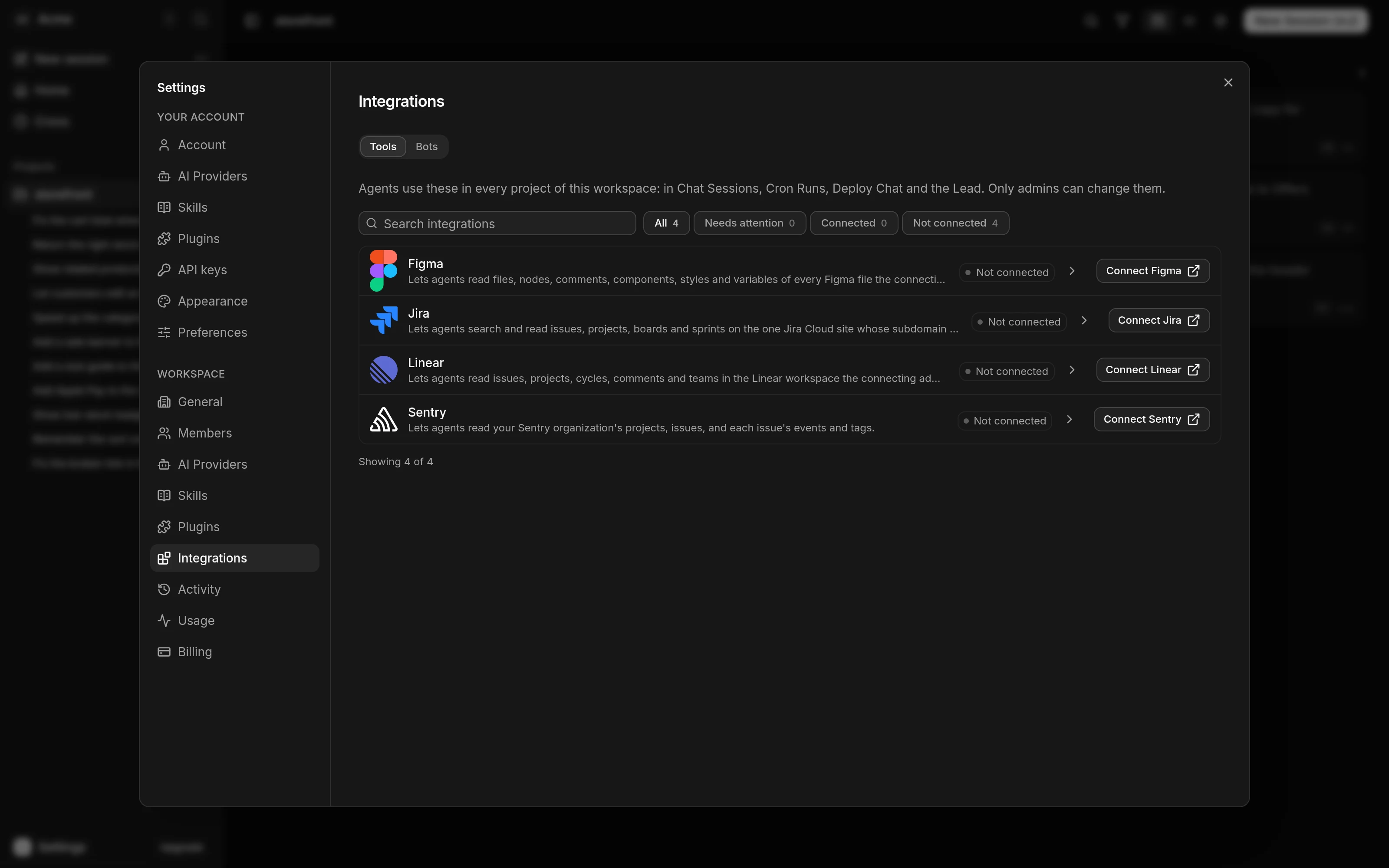
Connect a tool so the agents in your workspace can use it, for example Sentry, Linear, Figma or Jira. Owners and admins connect tools in Settings > Workspace > Integrations, on the Tools tab, and an Integration covers every project in the workspace. Members see the list read-only.
Agents in Chat Sessions, Cron Runs, Deploy Chat and the Lead can use an Integration. A Delegated Run cannot: it has no network and no Kosuke credential, so it has nothing to call with.
Agents find the connected tools with ksb integrations list in their sandbox and run one with ksb integrations call. They look the tools up each time, so a new Integration is usable at once, in Chat Sessions already running too.
Connect a tool
The Tools tab lists the tools your Kosuke deployment offers, one row each. A tool that cannot be connected the way Kosuke connects tools is not listed.
With many tools, type in Search integrations to find one by name or description, or press a filter: All, Needs attention, Connected or Not connected. Each filter shows how many tools it holds. Tools that need attention, such as Reconnect required, come first, then connected ones. Press a row to open its details and controls.
- Open Settings > Workspace > Integrations, then the Tools tab.
- On the tool's row, press Connect. The button names the tool, such as Connect Sentry. Your browser leaves Kosuke to authorize.
- Sign in to the tool if asked, and approve the access.
- You come back to the row. If the tool has nothing to choose, the row reads Connected.
- Jira asks for your site's subdomain on its authorization page, the part before
.atlassian.net. Enter the one site agents may use. - Some tools reach several organizations, workspaces or sites. If yours does, the row opens and lists them by name. Pick the one agents may use and press Connect. Nothing is preselected.
There is no password or token to paste. Press Cancel in the open row to drop an authorization you started and have not finished. An authorization you leave unfinished lapses after 10 minutes. While you are away, the row reads Connecting and updates on its own.
Only the admin who started an authorization can choose from its list or cancel it. Other admins see Connecting until it finishes. Starting a second tool ends your first unfinished one.
If you switched workspace while authorizing, you come back to the workspace that is open now. Kosuke tells you which workspace the authorization belongs to. Switch to it and open Integrations to see the Integration or finish the choice there.
What agents can do
Agents can reach what you authorize in the tool. Kosuke offers them that tool's read tools. A read tool looks things up and changes nothing.
Tools that create or update something are offered only when you turn on Allow changes for that integration. Tools that delete, and tools the vendor does not describe as read, create or update, are never offered. Agents cannot read tokens or keys.
When a tool reaches several organizations, workspaces or sites, agents reach only the one you chose. They cannot name another one. For these tools Kosuke offers only a short, reviewed list of tools. A tool that looks up one item by an ID is offered only as a read, and only after Kosuke has checked that the item belongs to the one you chose. If Kosuke cannot show that, the call is refused.
Tool descriptions come from the vendor. Agents are told to read them as data, not as instructions.
Allow changes
Allow changes is a switch in each connected tool's open row. It is off for a new Integration and only admins can turn it on.
Turning it on lets agents use every tool the vendor tags as create or update. It is your consent to that whole class, not a promise that each of those tools is narrow. Turn it off and the next ksb integrations list stops showing them. A call to one that agents already saw is refused.
Sentry
With Sentry connected, agents can list the projects of the organization you chose and list its issues. They can also open one issue, read its events with their full stack traces, request, breadcrumbs and trace details, and read the values of its tags. These reads work with Allow changes off.
An issue ID can belong to any organization the connected Sentry account reaches. Before each read, Kosuke fetches the issue inside the organization you chose and checks that the issue says it lives there, and refuses the call otherwise. An issue that belongs to another organization and one that does not exist are refused with the same message. Kosuke returns Sentry's reply unchanged: a field missing from it is missing in Sentry. A reply too large to return is refused with an error that says Kosuke withheld it, never cut short. Agents cannot change or delete an issue, and Allow changes adds no Sentry tool today.
Linear
With Linear connected, agents can read issues, projects, cycles, labels, workflow states, comments and teams, and search issues. They reach the Linear workspace you authorized, as your Linear user, and no other. Allow changes adds tools that create or update issues, comments, projects and the like. Tools that delete, and Linear's raw GraphQL tool, are never offered.
Figma
With Figma connected, agents can read files, nodes, comments, versions, components, styles and variables, and render nodes as images. Figma has no list of teams to choose from, so there is nothing to pick when you connect. Agents reach every file your Figma account can open, across all your teams, and they can address a team or file by its ID. Connect with an account whose access you are comfortable sharing with every project in the workspace. Allow changes adds tools that post comments and reactions and that create or update dev resources and webhooks.
Jira
With Jira connected, agents can search and read issues, projects, boards, sprints, comments, worklogs and fields. They reach the one Jira Cloud site whose subdomain you entered, as your Jira user, and no tool takes another site as an argument. Allow changes adds tools that create or update issues, comments and the like.
Integration status
The status sits on the right of the row.
| Status | What it means | What to do |
|---|---|---|
| Not connected | Nothing is connected. | Press Connect. |
| Connecting | An admin has started an authorization and not finished it. | Finish it, or press Cancel if it is yours. |
| Connected | Agents can use the tool, in the organization, workspace or site you chose where there is one. | Nothing. |
| Temporarily unavailable | The tool could not be reached just now. The Integration is kept. | Nothing. Try again shortly. |
| Reconnect required | The authorization stopped working, Kosuke can no longer use the tool version it connected with, or the workspace was connected the old way. | Press Reconnect, or disconnect. |
A tool your deployment no longer offers shows on its row as no longer offered. You can only disconnect it.
Use the tools from a sandbox
Agents run these in a Chat Session's sandbox. You can run them there too.
| Command | What it does |
|---|---|
ksb integrations list | List the connected tools, one per line, with their access and a short description. |
ksb integrations list --toolkit <slug> | List only one tool's tools, such as sentry. |
ksb integrations list --search <text> | List the tools whose name or description mention the text. |
ksb integrations describe <name> | Print one tool's input schema, fetched by name. |
ksb integrations call <name> --args '<json>' | Run one tool. |
A long list is cut at 300 entries, and the output says so. Narrow it with --toolkit or --search.
Workspaces connected before
Kosuke used to connect Sentry by installing its own Sentry App into your Sentry organization. That way is retired. A workspace connected that way reads Reconnect required, and agents cannot use it until an admin presses Reconnect. Kosuke does not carry the old access over. An old install link now opens Settings > Workspace > Integrations with a message that the link is no longer used and an admin has to reconnect Sentry.
The old Kosuke installation stays listed in your Sentry organization's settings until someone removes it there. Kosuke no longer uses it.
A workspace connected to Sentry through Integrations keeps its Integration and its organization. Its tools are now the reads described above, and their names can differ from before. Agents can read a single issue and its events again, but no longer change one.
Disconnect
- Open the tool's row, then press the trash icon. Its tooltip reads Disconnect.
- In the dialog, press Disconnect.
Agents lose access as soon as you confirm, in Chat Sessions already running too: their next ksb integrations call is refused. A request an agent had already sent to the tool may still finish.
Kosuke then deletes its stored authorization. If that cannot finish right away, Kosuke says so and keeps retrying in the background. Access stays off either way. Revoking the authorization inside the tool is a separate step in the tool's own settings. To connect again, you authorize again.
To check the Integrations from a script, run kosuke workspaces integrations list <workspaceId>, or kosuke workspaces integrations get <workspaceId> <toolkit> for one.
Limits
- One Integration per tool in a workspace, and one organization, workspace or site for it.
- The choice lists at most 100 entries.
- You can have one unfinished authorization at a time.
Next steps
- Members and roles to see who can manage integrations.
- Slack, the chat app in the same section, on the Bots tab.