Messages, Up next and steering
Type in the composer at the bottom of a session and press Enter to send. If the agent is idle, your message starts a turn. If it is working, your message waits in Up next and starts the next turn. To change course without waiting, steer your message into the running turn or press Stop.
The session view
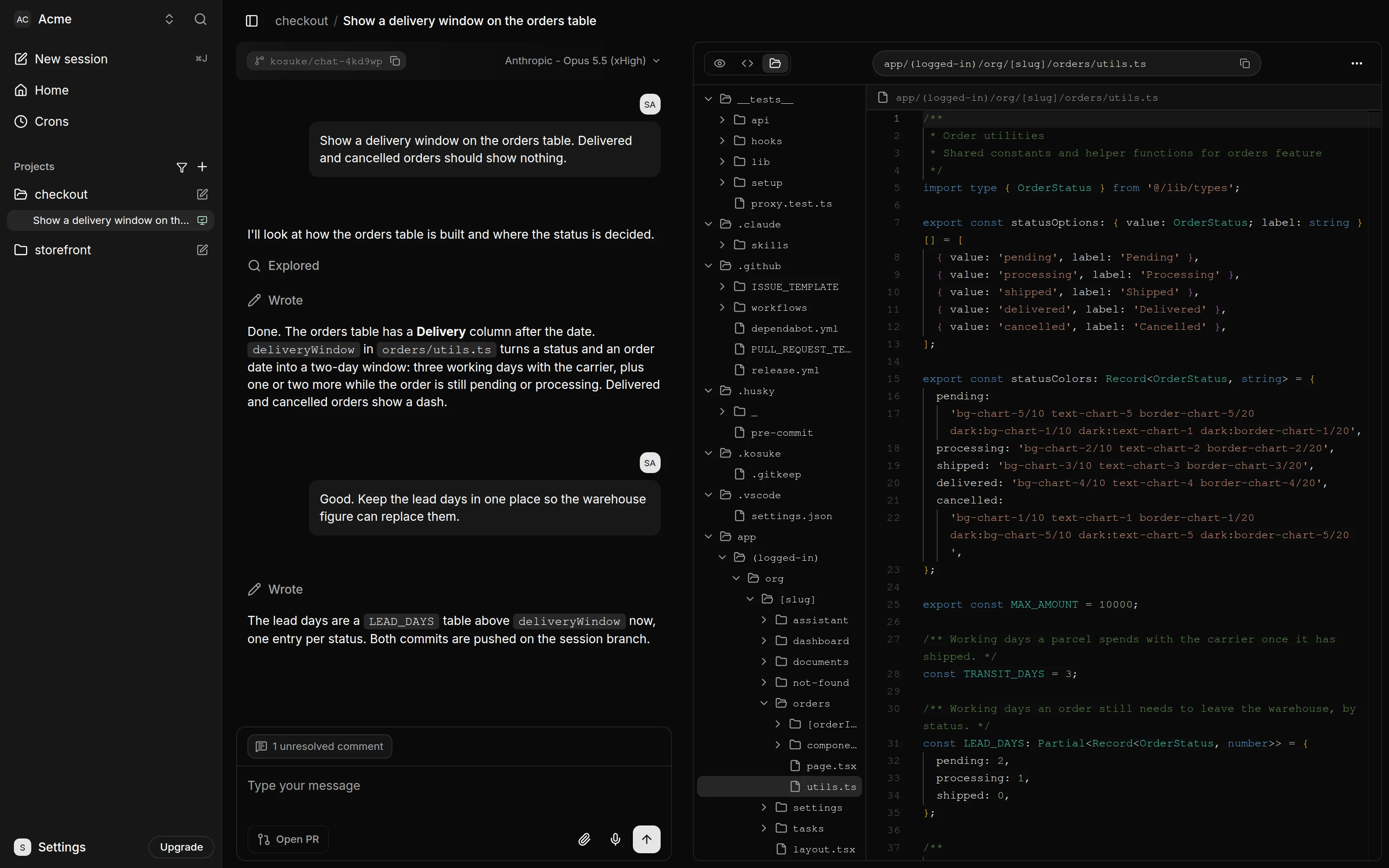
The conversation is on the left. The panel on the right has up to four tabs. Artifacts appears once the agent has written one.
| Tab | What it shows |
|---|---|
| Preview | The app running in the session's sandbox. See Preview and sandboxes. |
| Changes | The diff of the session's work. See Review the changes. |
| Files | The sandbox's files. You can edit them while the sandbox runs and the agent is idle. |
| Artifacts | Documents, mockups, images and videos the agent wrote. See Artifacts. |
Any member of the workspace can send messages in any session. Each message also tells the agent which page the Preview is showing, so "this page" means what you are looking at. When the sandbox is paused, sending a message starts it again.
Send a message
- Type in the composer. Press Shift+Enter for a new line.
- To add files, press Attach files or drag them onto the composer. You can also paste an image.
- Press Enter or the send button.
Type / to open the menu of skills and commands. In a Codex session, type $ instead. See Skills.
Attachments
| Limit | Value |
|---|---|
| Files per message | 10 |
| Size per file | 10 MB |
| Images | JPEG, PNG, GIF, WebP |
| Documents | PDF, Word (.docx), Excel (.xlsx, .xls) |
| Text | .txt, .md, .csv, .tsv, .json, .xml, .yaml, .yml, .log |
| Vector | SVG (.svg), read by the agent as markup, so any model can take it |
Some models read fewer kinds of file:
| Model | Images | PDFs |
|---|---|---|
| Anthropic models | Yes | Yes |
| OpenAI models | Yes | No |
| GLM-5.3 | No | No |
| GLM-5.3-Flash | Yes | Yes |
| Kimi K3 | Yes | Yes |
The composer refuses a file the model cannot read and says why. If you switch to such a model, those files stay in your draft and the send is held until you remove them or pick a model that can read them.
Up next
A message you send while the agent is working joins Up next, the list above the composer. When the running turn ends, the message at the top starts the next turn. Messages go one turn at a time, in list order.
Every member sees the same Up next, and it keeps sending after you close the tab.
| To | Do this |
|---|---|
| Edit a message | Open the row's menu and choose Edit. The message moves into the composer. Enter saves it, Esc cancels. |
| Move a message | Drag its row, select it and press Shift+↑ or Shift+↓, or choose Move to top from its menu. |
| Delete a message | Open the row's menu and choose Delete. |
| Send it into the running turn | Press Steer now on the row. See Steer the running turn. |
Only a message's author can edit, move or steer it. The author or a workspace owner or admin can delete it. Up next holds up to 20 messages.
Open PR and Sync start ordinary turns, so they also wait in Up next while the agent is working.
When Up next pauses
In these cases Up next pauses instead of sending.
| Reason | What happened |
|---|---|
| The turn was stopped | Someone pressed Stop. |
| The turn failed | The turn ended with an error. |
| The runtime command failed | A compact command ended with an error. |
| The agent asked a Clarification | The agent is waiting for your answer. |
| The session is under review | The session moved to Under Review. |
To restart it, send a new message. It goes out at once, and Up next carries on after its turn. Any member can restart it this way.
Moving a session to Completed, Archived or Backlog empties its Up next.
Steer the running turn
Steering adds your message to the turn that is already running. The agent changes course without starting over.
- Send your message while the agent works. It joins Up next.
- Press Steer now, the arrow on your message's row.
To steer as you send, press ⌘Enter (Ctrl+Enter on Windows and Linux) or ⌘-click the send button. The message passes through Up next and goes straight on into the running turn. When the turn cannot take a steer, the message stays in Up next like any other.
Steer now and the shortcut work only when all of these are true:
- The running turn is your own, started by a message you sent.
- The message is yours.
If the turn ends before it takes your message, the message goes back to the top of Up next.
Stop a turn
Press Stop, the square button in the composer, or press Esc. The agent stops where it is, and Up next pauses. Send a message, or press Send now on one of your own messages in Up next, to carry on.
Answer a Clarification
Sometimes the agent asks a Clarification before it goes on. It appears in the transcript, one tab per question, and the turn ends. The card on the board shows "Your turn" to the session's Assignee.
- On each question tab, pick an option. To write your own answer, pick Other and type it.
- Open the Summary tab to check your answers. Add anything else under Extra information (optional).
- Press Submit answers. It appears once every question has an answer.
Your answers go to the agent as your next message, and it carries on. You can also type a reply in the composer instead.
Clear or compact the conversation
Two commands in the skills menu act on the agent's memory of the session. They are marked Runtime. Neither starts a turn. Commands sent during a turn wait in Up next and run automatically in list order. In a Codex session, $clear and $compact work as well as /clear and /compact.
| Command | What it does | Available in |
|---|---|---|
/clear | Starts a fresh conversation for the agent. The transcript marks it "New conversation from here". | Claude, Codex, GLM and Kimi |
/compact | Summarizes the conversation so far to free up context. Add text after it to say what the summary should keep. | Claude, Codex, GLM and Kimi |
Codex compacts without a prompt, so in a Codex session the text after $compact stays in the conversation's history as a note, which Codex may not follow.
You can edit, move or delete a queued command. Commands cannot be steered into a running turn. A command also waits while another command runs, and follows the same pause rules as other messages.
The messages stay on screen either way. After /clear, the agent remembers nothing said before it. The branch and the files in the sandbox are unchanged.
Watch the context
The ring beside Attach files shows how full the model's context window is. Hover over it to see the tokens used. It turns red at 90%. When it gets close to full, run /compact or /clear.
See what subagents are doing
When the agent starts subagents, a row of their icons appears in the chat. Press it to open Agent activity. It lists the subagents as Active, Failed, Stopped or Done. Pick one to read its own conversation, and press Back to the main chat to return.
When a turn fails
A banner above the composer says the turn failed and why. Press Try Again to send your last message again. When the banner offers Reconnect or Fix it instead, the provider needs attention first. If it names another member's Subscription, ask them to reconnect it, or reassign the session. See AI providers.
Under Review, Completed and Archived sessions
An Under Review session takes your messages and resumes when you send one: the pull request turns back into a draft and the message goes out as it would in an Active session. Above the composer, a banner reads "Ready for review. Send a message or Resume to keep working." It links to the pull request by its number. Press Resume to turn the pull request back into a draft without sending anything.
Completed and Archived sessions take no messages. To work on an archived session, restore it. See Chat sessions and the board.