Import a repository
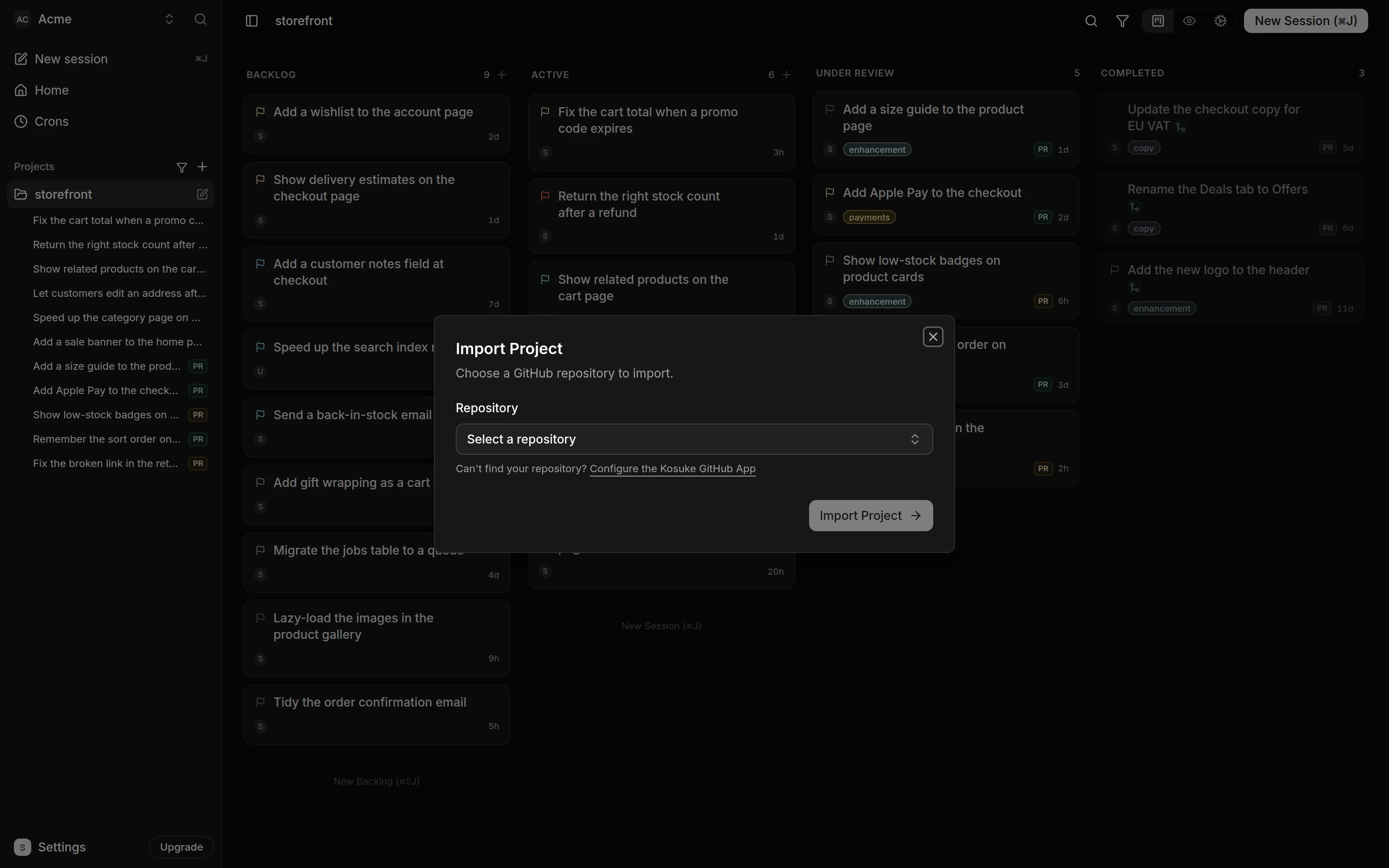
Import a GitHub repository to turn it into a Kosuke project. In the sidebar, press + next to Projects, pick the repository and press Import Project. The first time, the same dialog asks you to install the Kosuke App on GitHub, which connects your GitHub account in the same trip.
Any member of the workspace can import a repository. To deploy it afterwards, the workspace needs Anthropic or OpenAI Credentials, which an admin adds in Settings > Workspace > AI Providers. See AI providers.
Import the repository
- In the sidebar, press + next to Projects. The Import Project dialog opens. On an empty Projects page, Import your project in the getting-started checklist opens it too, or Create Your First Project when the checklist is not shown.
- If the dialog reads "Connect your repositories", press Install on GitHub. On GitHub, pick the account and the repositories Kosuke may see, then authorize Kosuke. GitHub sends you back to the same dialog with your repositories listed. If your GitHub organization already has the app, press Connect GitHub under the button instead.
- Open the Repository list. Type to search.
- If your repository is greyed out, press Install App beside it and add the repository on GitHub. GitHub sends you back to the dialog.
- Select the repository and press Import Project.
Connect GitHub
Your GitHub Connection links your own GitHub account to Kosuke. It belongs to you and follows you into every workspace you join. Kosuke uses it to list the repositories you can reach and to put your name on the commits and pull requests from your messages.
You can connect from the import dialog or from Settings > Your Account > Account. In the dialog, Install on GitHub installs the Kosuke App and connects you in one trip, and Connect GitHub under it connects you without installing, for a GitHub organization that already has the app. Settings connects without installing. The GitHub row there shows your GitHub username once you are connected.
| You see | Press |
|---|---|
| Not connected | Connect |
| Reconnect required | Reconnect |
| Your username and "GitHub connected" | Disconnect to remove the connection |
In the import dialog, a connection GitHub no longer accepts reads "Reconnect GitHub to continue". Press Reconnect GitHub there.
Install the Kosuke App
The Kosuke App is Kosuke's GitHub App. Kosuke reads and pushes your code through it, so every repository you import needs it installed.
The Repository list shows every repository your GitHub account can reach. Repositories that have the app come first. The rest are greyed out and carry an Install App link.
- To add more repositories to an existing install, press Configure the Kosuke GitHub App under the list. GitHub sends you back to the dialog.
- If the repository belongs to a GitHub organization you do not own, an organization owner has to approve the install. GitHub sends them your request, and the dialog reads "Waiting for your org admin". Press Check again once they approve. If the dialog asks you to connect instead, press Connect GitHub under Install on GitHub.
- The owner who approves lands on a page that reads "Kosuke GitHub App installed". They need no Kosuke account.
- If a repository is missing from the list, check that your GitHub account can open it on GitHub.
What importing brings in
- Kosuke creates the project and names it after the repository.
- Every open pull request on the repository arrives as a chat session. A draft pull request lands in Active, and one ready for review lands in Under Review. These sessions start with no Assignee.
- Pull requests opened on GitHub later arrive as sessions too.
- Kosuke adds nothing to your repository.
After the import, Kosuke opens the project's settings. The Deploy Chat is on the left and the project's configuration is on the right. Until its first deploy succeeds, the sidebar marks the project SETUP. In its place it shows DEPLOYING while a deploy runs, a warning icon when the deploy needs you, and an error icon when it fails. Press Deploy next, as Deploy your project describes.
Whose GitHub account acts
Kosuke acts on GitHub as the member who sends the message or presses Ready for review, Resume or Restore. It uses that member's GitHub Connection when they have one, and the Kosuke App otherwise. The account can change from one turn to the next in the same session.
| Action | With a GitHub Connection | Without one |
|---|---|---|
| Commits from your messages or your own commits | Your account is the author. The Kosuke App commits and pushes. | Kosuke App |
| The pull request the agent opens for you | Your account | Kosuke App |
| Ready for review and Resume | Your account | Kosuke App |
Before its first GitHub write in a turn, the agent says in one short line which account the action will come from.