Deploy your project
Deploy a project to get it running before you start chat sessions. Open the project's settings and press Deploy. The deploy agent reads your repository, writes the settings that run it and starts your app in a sandbox. When the Deploy Chat shows Deployed, the project is live and ready for sessions.
Before you deploy
The deploy agent runs on the workspace's Credentials for Anthropic or OpenAI. An admin connects one in Settings > Workspace > AI Providers. See AI providers.
A deploy runs in a sandbox, so it uses the workspace's credits like any other work. Rates are on Plans and billing.
Run the first deploy
- Open the project's settings. After an import, Kosuke opens them for you. Otherwise press Settings (the gear) in the project header.
- Optionally, type instructions in the Deploy Chat composer, such as the command that starts the app. You can attach files too.
- Press Deploy.
- Watch the phases in the Deploy Chat. Answer the agent if it asks you something.
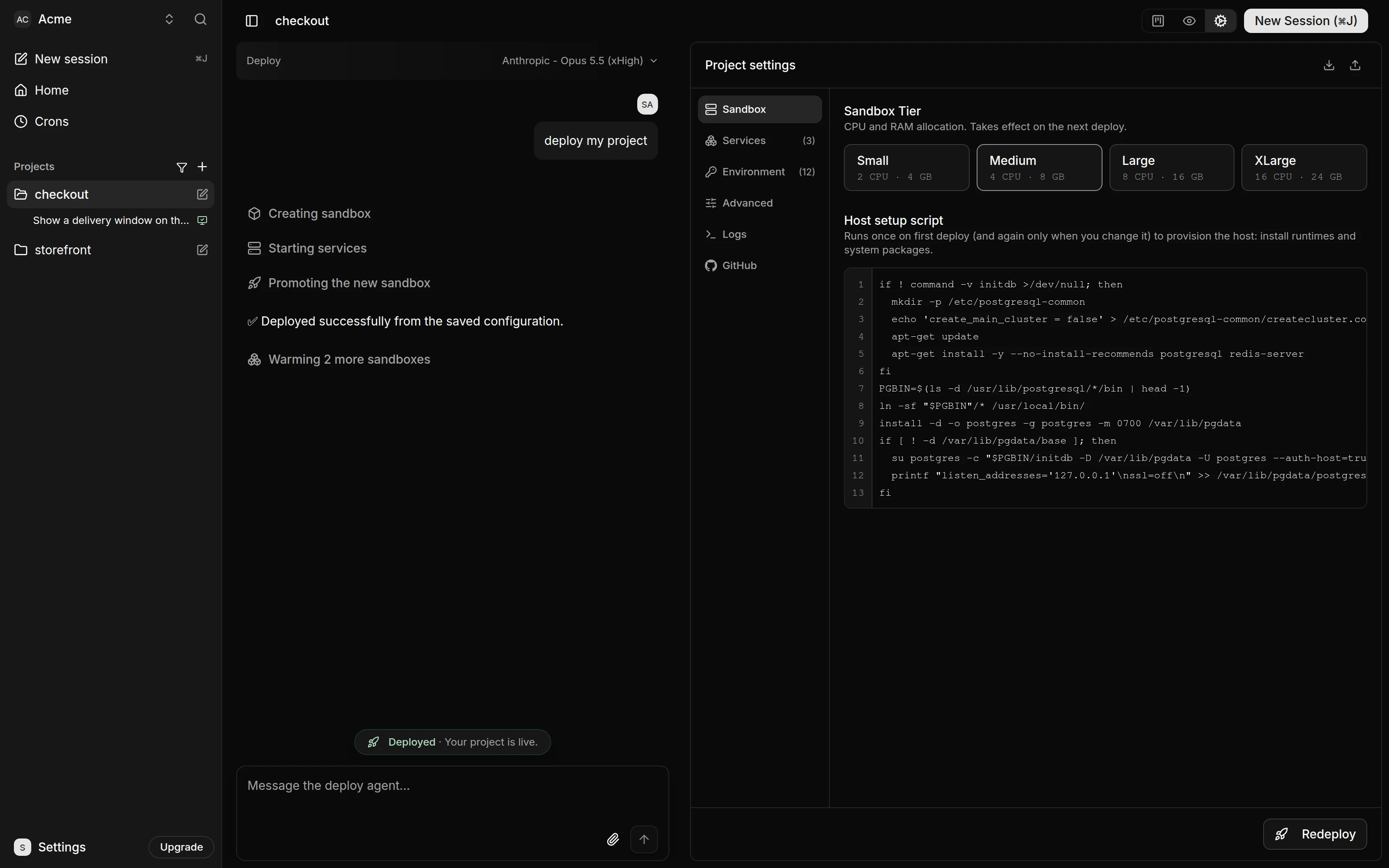
- Wait for the pill that reads "Deployed · Your project is live."
What the deploy agent does
The agent reads the repository and works out what has to run, such as apps, workers and databases. It writes their start commands, ports, environment variables and setup scripts into the project settings. Kosuke then boots a sandbox from those settings, checks that the services are healthy and makes that sandbox the project's live Preview.
The agent also picks the project's sandbox tier. Project settings explains tiers.
Creating sandbox, Starting services, Promoting the new sandbox and Warming N more sandboxes show as lines in the Deploy Chat. While the agent works or asks you something, the chat shows its messages or its question.
| Phase | What is happening |
|---|---|
| Creating sandbox | Kosuke creates a sandbox for the project. |
| Starting services | The services start, and Kosuke waits for them to become healthy. |
| Agent working | The deploy agent sets up and checks the project. |
| Awaiting your input | The agent has a question for you. |
| Promoting the new sandbox | Kosuke runs final checks and makes the new sandbox the live Preview. |
| Warming N more sandboxes | Kosuke starts spare sandboxes so new chat sessions open without waiting. They count as Warm-up usage. |
| Updating | The deploy agent is working on the live Preview. |
The sidebar shows the same state on the project's row. It reads SETUP before the first deploy and DEPLOYING while one runs. A warning triangle means the agent is waiting for you. A red circle means the deploy failed.
Answer the deploy agent
When the agent needs something only you know, such as an API key, it asks in the Deploy Chat. The composer then reads "Answer the deploy agent...". Reply there, and the deploy continues. Every member who can open the project sees the same Deploy Chat and can answer.
Messages you send while the agent works wait Up next and start the next turn. On an Anthropic deploy model you can steer a waiting message into the running turn. A message you send before the sandbox is ready joins the agent's first turn as instructions. Messages, Up next and steering has the full rules.
To end a running deploy, press Stop in the composer.
Choose the deploy model
The model picker sits in the Deploy Chat header. It lists the Anthropic and OpenAI models. A provider your workspace has no Credentials for shows Needs auth, and its models cannot be picked. Kosuke picks an Anthropic model by default when the workspace has Anthropic Credentials, and an OpenAI model otherwise.
The choice is saved for the project. You can change it between deploys. When you switch provider, the next turn starts on the new model, and Kosuke hands it the conversation so far as text. Models explains providers and reasoning effort.
Edit the settings yourself
Before the first deploy, the settings panel is locked, because the agent writes it. Press Edit manually to unlock it. The next deploy starts from what you save there, such as a service or an environment variable.
Redeploy
After the first deploy, the settings panel shows Redeploy. Press it after you change settings, or when the Deploy Chat reads "Press Redeploy to rebuild the deployment...". That line means the live Preview is gone.
A redeploy first tries to start the saved settings without the agent. This is the Unattended Boot.
- If it works, the Deploy Chat reads "Deployed successfully from the saved configuration."
- If it fails, it reads "Automatic deploy failed. Starting the deploy agent to diagnose and fix." The agent takes over and may change the settings to make the project start.
Once the project is deployed, you can also message the deploy agent. Ask it to inspect the deployment or change it, for example to add a service.
When a deploy fails
A failed deploy shows the reason, then a "Deploy failed" pill with a Retry Deploy button.
- Open the Logs tab in the settings panel. Pick Full logs, Setup or one service.
- Find the error.
- Tell the deploy agent what you found in the Deploy Chat. Or fix the setting yourself and press Retry Deploy.
Recovery Deploys
Kosuke starts a deploy on its own in three cases. This is a Recovery Deploy.
- The Preview failed to run new commits on the branch sessions start from. The Deploy Chat names the commit and says it is "starting an automatic recovery deploy."
- The Preview's sandbox was lost.
- Kosuke released a platform update.
Recovery Deploys run on the workspace's Credentials and show in the Deploy Chat. You answer them there like any other deploy.
Deploys and sessions
- You can create sessions only after the first deploy succeeds. Until then, the New Session dialog shows "Project setup not complete. Deploy the project to create sessions."
- After that, while a deploy runs, you can only add sessions to the Backlog. Start them once the deploy ends.
Limits
- The deploy agent runs only on workspace Credentials. A personal Subscription cannot run it.
- GLM and Kimi cannot run the deploy agent. A workspace with only Z.ai or Moonshot AI Credentials cannot deploy.
- The deploy model cannot change while a deploy runs.