Manage Workspace Skills
Workspace owners and admins add, edit and remove the Custom Skills that every chat session in the workspace carries. Open Settings > Workspace > Skills. Each Custom Skill is a folder of text files with a SKILL.md at the top. Members can open a Custom Skill and read its files, but only owners and admins can change them.
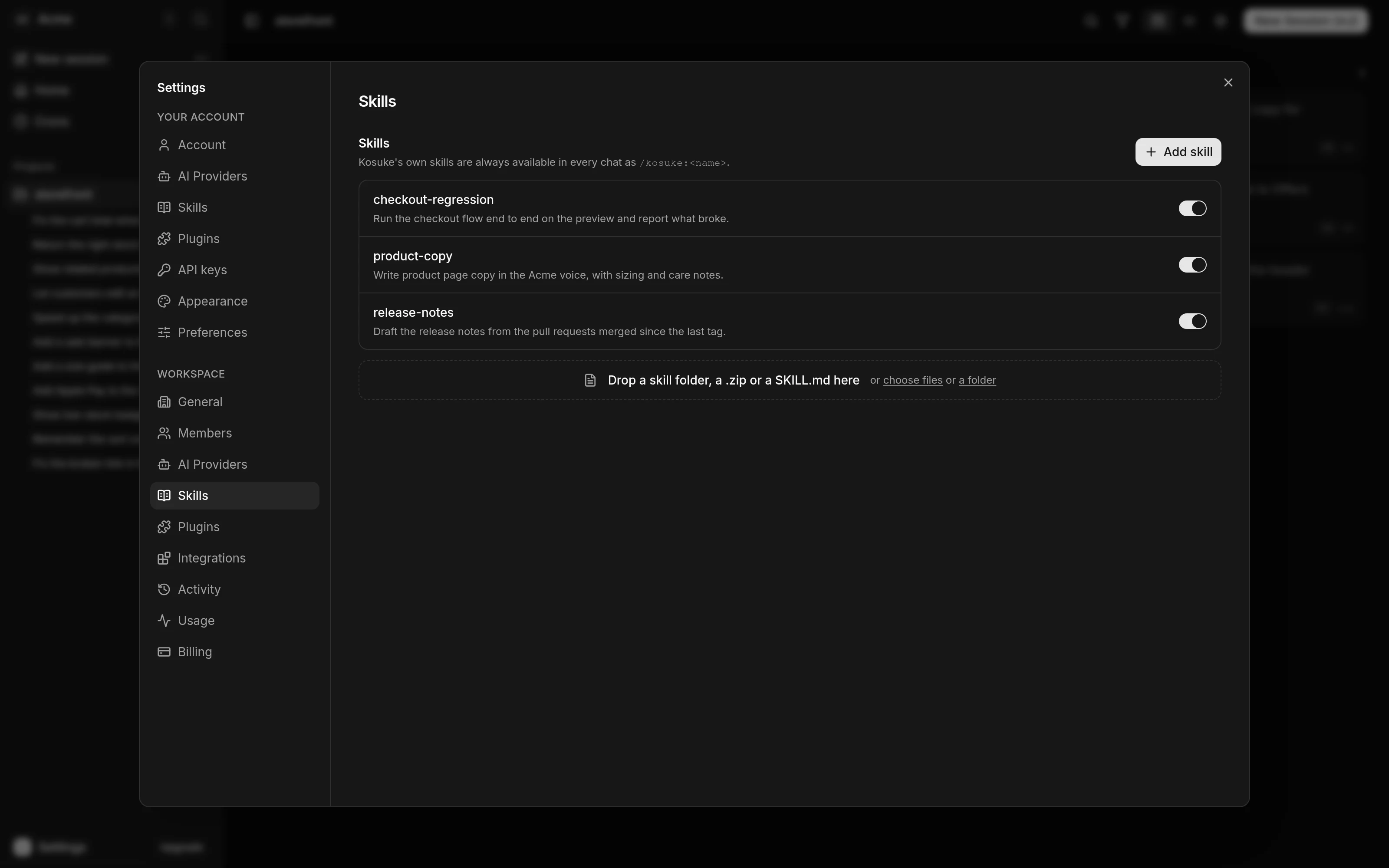
A running session picks up every saved change at its next turn. To turn a skill on or off, use the switch on its row, as Skills describes.
Factory Skills
The skills Kosuke ships are not on this page. They live in Kosuke's own plugin, named kosuke, and every chat session carries them. You cannot turn them off or edit them. Call one as /kosuke:<name>, such as /kosuke:open-pr, or $kosuke:open-pr in a Codex session. Skills lists them.
A Custom Skill can take any name, including a Factory Skill's, such as open-pr. Both stay in the menu. /open-pr runs yours, and /kosuke:open-pr runs Kosuke's.
Add a skill
- Press Add skill. A new skill opens with a template
SKILL.mdto fill in. - Write the front matter and the instructions, as in the example below.
- To add more files, press New file above the file list and type a path. A
/in the path makes a folder, such asscripts/check.sh. - Press Create skill.
---
name: release-notes
description: Draft the release notes from the pull requests merged since the last tag. Use when the member asks for release notes.
argument-hint: '[since tag]'
---

# Release notes

List the pull requests merged since the tag, then group them by area.
| Field | Required | What it is |
|---|---|---|
name | Yes | The command members type. Lowercase letters, numbers and single hyphens, up to 64 characters. |
description | Yes | What the agent reads to decide when to use the skill. Up to 1,024 characters. |
argument-hint | No | The arguments the message box shows after the command. Up to 128 characters. |
Any other front matter field is kept as you wrote it.
Upload a skill
- Drop a skill folder, a
.zipor a singleSKILL.mdon the area below the list. You can also press choose files or a folder there. - Check the files that open in the editor. The folder that holds
SKILL.mdbecomes the skill. - Press Create skill. Nothing is saved before that.
Files outside the folder that holds SKILL.md are left out. So are binary files and files over the size limit. A message lists every file left out and why.
Edit a skill's files
Open a Custom Skill from the list. The file tree is on the left and the open file on the right.
- Markdown files open rendered. Click the text to edit its source.
- Other files, such as scripts, open in a code editor.
- To rename or move a file, edit its path above the file.
- To delete a file, press the trash icon beside its path.
- To add files, press Upload files or Upload a folder, or drop them on the file tree. A file at the same path is replaced.
- A dropped folder,
.zipor file that holds aSKILL.mdstarts a new Custom Skill instead.
The tree marks each changed file. Press Save to keep your changes. If you leave with unsaved changes, Kosuke asks first, and Discard drops them.
Limits
| Limit | Value |
|---|---|
| File size | 100 KiB per file |
| Files per skill | 50 |
| Total size | 1 MiB per skill |
| File path | 255 characters |
| File type | Text only. Binary files are left out. |
Files in an uploaded .zip | 500 |
| Executable bit | None. Run scripts through their interpreter, such as bash scripts/check.sh. |
| Names | Each Custom Skill needs its own name. |
Delete a Custom Skill
Open the skill, press Delete in its header, then press Delete skill.